

How Microsoft Power Platform is helping to modernize and enable...
In this webinar, our experts showcase a variety of demo use cases of how different components of the...
Are you Missing navigation items on a form in Dynamics CRM 2011? Ever wonder how to get thos items back on your form? Never fear. Joe CRM is here!
Let's get started with a relevant example:
On an Account record, you may notice that the “Addresses” (or More Addresses), Cases or any available relationship is missing from the left navigation menu.
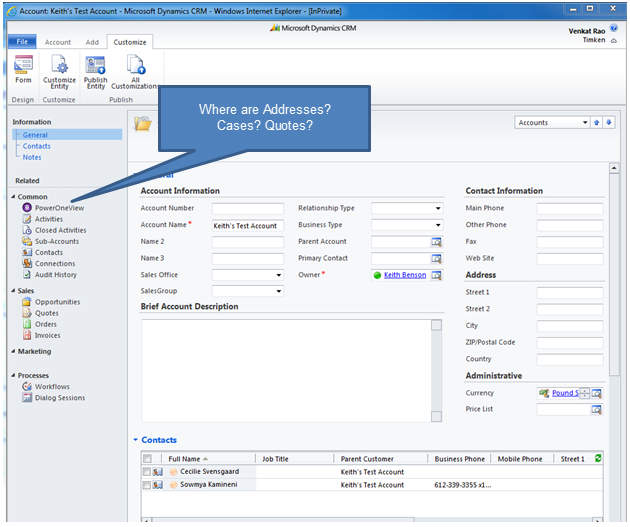
Getting those relationship items back in that list is very easy. Simply click “Customize” and then “Form” on a record. In the Form, click the “Navigation” button. When you do that, you will see “relationship Explorer” on the right that contains all the other relationships that are not in the navigation menu but can be included there. Simply drag an item and drop it wherever you want, save the form and publish it, and boom! You will see that item on the form now!
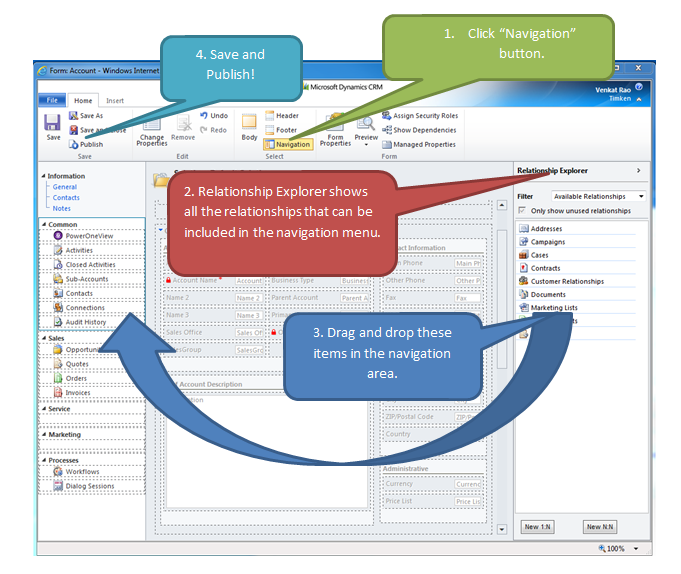
Now, the relationship will show up on the form.

That's it. So easy your mother could do the work for you. If your mother isn't available, your can always reach out to our Microsoft Dynamics CRM experts for help.
Happy CRM'ing!







In Dynamics 2013, where are the relationships displayed when a user views a form?